

Hi, I’m Mike O’Toole. Here’s How I Got Here
December 4, 2025
Paste-in Filters in Sigma
December 5, 2025Custom Sorting in Sigma
Sigma makes a lot of things easy – including the ability to do custom sorting. While sorting is an easy concept to understand, we want to help you understand the options given to you in Sigma. In this blog post we’re going to cover how to do standard and custom sorting in Sigma as well as a common use case for sorting.
Standard Sorting
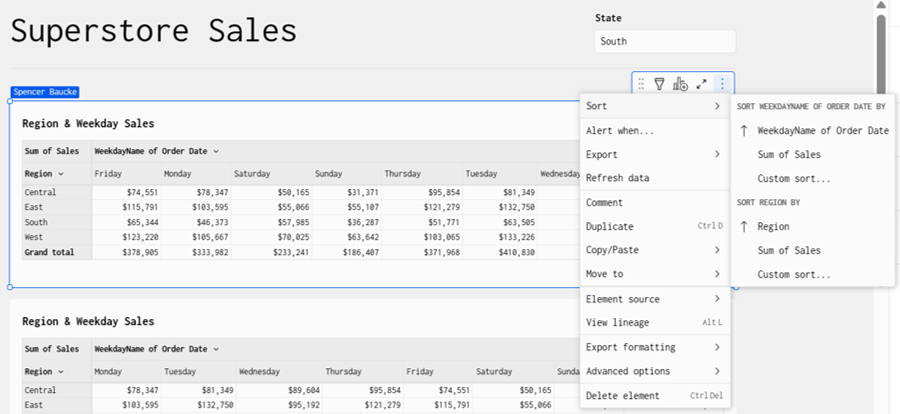
In any Sigma visual or table element, you can click on the ellipsis menu on the top right and see options for Sort. The standard options include all of the fields that are present in the element. In the example below, we have a Pivot Table showing Sales by Region and Weekday. In the Sort options we can see WeekdayName, Sales, and Region that are able to be sorted. Note that both columns and
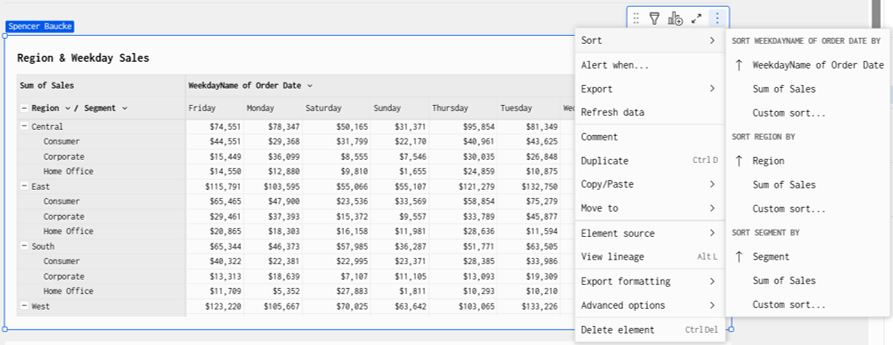
Note that when you put multiple fields in the Pivot Table rows (see below), you can also choose your sorting by all levels of the hierarchy. This will allow you to change how your table is sorted depending on the level of hierarchy chosen.
Custom Sorting
In addition to the standard sorting options using the fields found in the visual/table element – you can also choose the Custom Sort option. This option allows you to choose fields that are NOT found in the visual/table element – and unlike tools like Power BI, you do not have to hack the program and add those onto the visual somewhere.


This optionality allows for sorting of tables and visuals by metrics or fields that are not in the element. Now we’ll discuss a common use case of how to implement this.
Use Case – Days of the Week
A common use case for force sorting data is viewing data by days of the week. Whether you’re viewing sales activities by day of the week, or a staffing and allocation chart – 99% of those use cases will want the weekday names to be in chronological order (Monday through Sunday). Because weekday names are not inherently ordered numerically or alphabetically, you need to provide the logic to Sigma to get the ranking to work appropriately.
In this example, we’ll first create a Sigma calculation to grab the weekday name of the date field that you’re using – in this example it’s Order Date.
WeekdayName of Order Date = WeekdayName([Order Date])
Then we’ll create a Sigma calculation using the SWITCH() function to provide us outputs for each weekday name.
Weekday Sort = Switch([WeekdayName of Order Date], “Monday”, 1, “Tuesday”, 2, “Wednesday”, 3, “Thursday”, 4, “Friday”, 5, “Saturday”, 6, “Sunday”, 7)
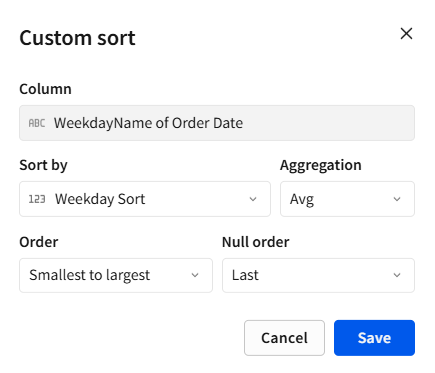
Then we’ll use the Custom Sort option and sort by the AVG aggregation and sort from Smallest to Largest.
You can see the weekdays sorted by the force sorted order below!

Contact Us
If you would like to talk to someone at Maverick Data about maximizing your usage of the Sigma platform, please email us at spencer@maverickdata.io for more information!