

Custom Sorting in Sigma
December 5, 2025
Sparklines in Sigma
December 5, 2025Paste-in Filters in Sigma
A Faster Way to Select Thousands of Postal Codes (or Anything)
When your dashboard filter needs to handle hundreds or thousands of values, the standard List values control becomes a bottleneck. Instead of forcing users to search-select-clear-repeat for every item, let them paste a whole list of postal codes (or SKUs, emails, partner IDs, etc.) into a Text Input and filter in one shot. Below is a simple, durable pattern using Contains() and case normalization that feels 10x faster and scales cleanly.
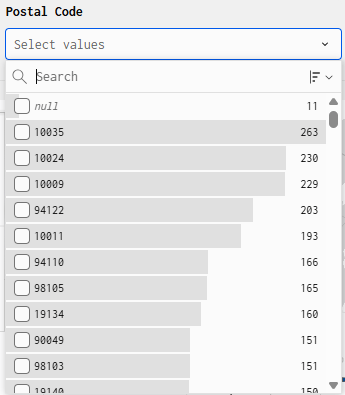
A Sigma List values control with long list of postal codes is time consuming to filter to multiple values
The problem (and why list controls feel slow)
If you drop every U.S. postal code into a List values control, users end up typing a value, selecting it, clearing the search, and doing it again—over and over. It’s tedious and easy to make mistakes.
Goal: Let the user paste a list (postal codes, SKUs, emails, IDs, states, etc.) into a Text Input (or Text Area) control and have the dashboard filter immediately—no more hunting in a drop-down. Sigma makes this easy by allowing references to control values directly in formulas.
The paste-to-filter pattern
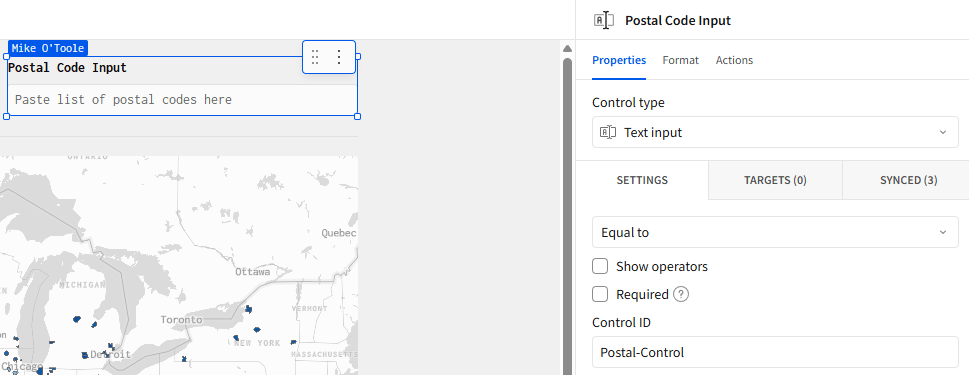
- Add the control:
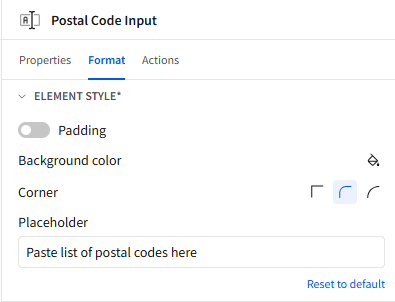
Add a Text Area control and set Control ID to: Postal-Control.
This is where users paste comma/space/newline-separated values.
- Create the calculated column in the data source:
Use theContains()function to check if the[Postal Code]column of our data set is in the text string that is entered into the Text Input control,[Postal-Control]. The formula should look like this:Contains([Postal-Control], [Postal Code])Name the column “Contains Postal Code?”
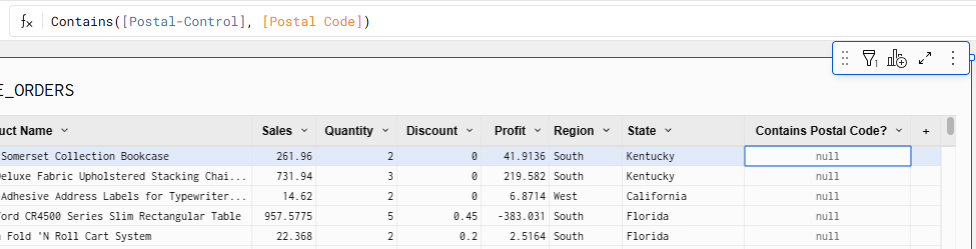
This returns True when the row’s postal code is found anywhere in the pasted controls list of values.
Best practice (for other string use cases): When matching free-form text (e.g., names, emails, SKUs with mixed case), normalize both sides with Upper() or Lower() to avoid case-sensitive misses. Not required here since the postal codes are already in text format.
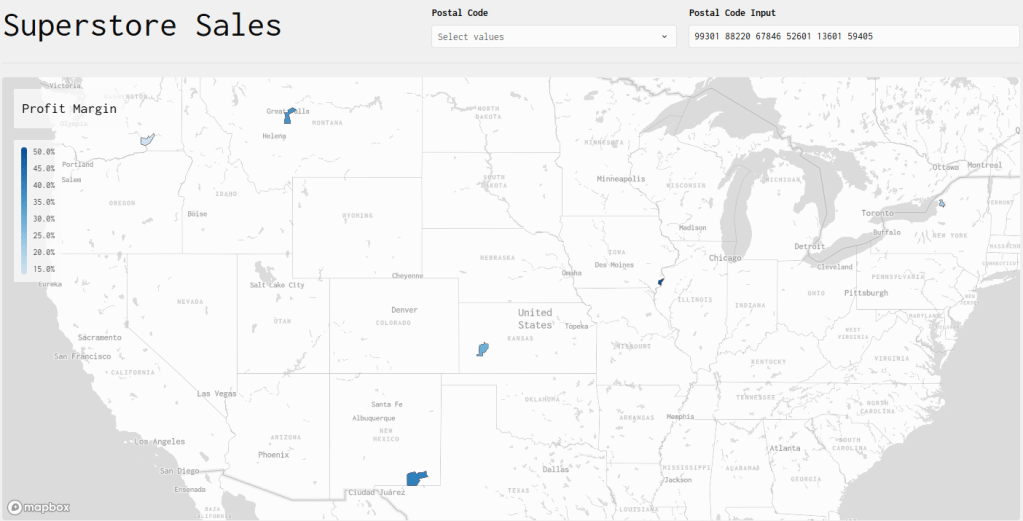
3. The last step is to add the new column, “Contains Postal Code”, as a filter on the target element. In this case, the filter will be applied to a Map-Region element and only the value of “True” is selected.

And now the user can paste or type in a list of postal codes, hit Enter, and the map will update with only the postal codes listed in the Text Input control.
Wrap-Up
Paste-to-filter turns a painful multi-select into a one-step, real-time filter. With a simple Text Input control and a single calculated column—Contains([Postal-Control], [Postal Code])—users can drop in a list of postal codes and get instant results without wrestling the List values control. Keep the Upper()/Lower() tip in your back pocket for other string fields, but for postal codes this lightweight pattern is all you need. Try it on one dashboard, measure the time saved, and roll it out everywhere it makes sense.
Contact Us
If you would like to talk to someone at Maverick Data about maximizing your usage of the Sigma platform, please email us at spencer@maverickdata.io for more information!