

AI Licensing Tiers in Sigma
December 18, 2025
Prompt Chaining: How I Used ChatGPT to Build a 3-Step NFL Pick Pipeline (and Why It Works for Business Too)
January 9, 2026Scrolling Headers in Sigma
In the December 5th release of “What’s new in Sigma” – Sigma announced that “Customize page headers” – aka scrolling headers – were now GA. While seemingly a smaller feature compared to other recent Sigma feature releases, this enhancement highlighted a couple of things us:
- Sigma remains dedicated to the embedded App experience. Every developer creating web apps routinely utilizes scrolling header functionality – so this functionality aligns to their web app UI experience.
- Sigma cares about making small feature changes that satisfy both developers and consumers. While we expect AI feature releases to continue to dominate the functionality enhancements, it’s nice to see their UI getting some love as well.
Here is an overview of the new functionality and how to use it.
Custom Page Headers
The new custom page headers features enables two main use-cases:
- Consistent Dashboard Headers – instead of having to copy/paste header and footer content from one page to another or duplicating tabs to capture header formatting, Sigma now allows developers to create dashboard headers once and propagate them to all (or selected) pages.
- Scrolling Header – just like when you scroll on a website and your header bar stays put while the rest of the page scrolls, this feature allows the header to stay locked and for users to scroll the page with the header staying with the scroll. If you want users to see all filter controls that are applied even while scrolling down, now you can put filter controls in the header and keep those selections constantly visible.
How to Implement
In any dashboard, navigate to the Summary tab on the right hand side and select Workbook Settings. Near the bottom of the list of drop-downs you will now see the option to select Workbook Navigation.

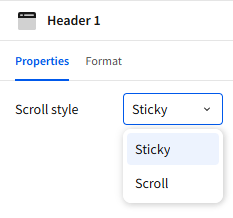
Clicking on Page Header will create a new header at the top of the workbook page. You can then click on the new header and select the Scroll Style. If you select Sticky and then scroll you will see that this header will remain visible as you scroll down the page. It also defaults to being visible on all other pages as well.
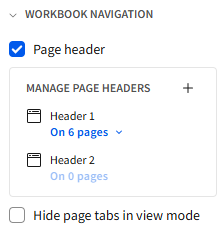
You can also create different headers for different pages. Click the plus sign in the top right of the Manage Pager Headers section to see the new Header being created. In blue, the text will also show you what pages these headers are being utilized in.
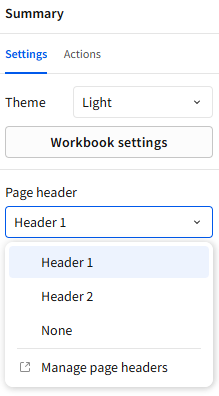
To replace a header or to edit a newly created header, navigate to the Summary tab in your workbook. You will see a section called Page header below the Workbook settings button.
You can select which header you want to use on each of the different pages within your report.
If you want to edit a header – either navigate to a page where the header you’re wanting to edit is being used then make your edits. You can also go to any page – select the header that’s wanting to be edited – make your edits – then toggle back to the original header.
Any visual element, UI element or filter control that you can put on a page can also be put in the header. You can also edit the height of the header by dragging down and dropping just like you would edit the size of any other page element in Sigma.
Wrap-Up
Overall, customizable page headers may look like a small UI enhancement on the surface, but they provide a meaningful improvement to how Sigma dashboards are built and experienced. By reducing repetitive layout work, reinforcing consistent design patterns, and enabling web-app-style interactions like scrolling headers, this feature makes it easier to deliver polished, embedded analytics without extra effort.
It’s another example of Sigma focusing not just on powerful AI and AI App capabilities, but on the day-to-day developer and end-user experience.
Contact Us
If you would like to talk to someone at Maverick Data about maximizing your usage of the Sigma platform, please email us at spencer@maverickdata.io for more information!