
Prompt Chaining: How I Used ChatGPT to Build a 3-Step NFL Pick Pipeline (and Why It Works for Business Too)
January 9, 2026
Thinking about migrating from Power BI to Sigma? Here are 5 things to consider.
January 14, 2026Dynamic Filter Controls in Sigma
The use case of dynamic rows, columns, and values in BI tools is fairly well documented. This functionality mimics the classic Excel Pivot Table and enables users to dynamically change the fields represented in a table. This functionality is easily completed in Sigma as well.
What is less documented is the process of then using those dynamically created fields to populate filters via click filtering. In Sigma, this is accomplished via dynamically populating Filter Controls with the selected value.
This blog will walk through how to use a dynamically created pivot table row to click filter other elements in a Sigma workbook.
Pivot Table Set Up
In this example use case we will be using the FAA dataset from the Snowflake Sample Database available in Sigma. First we need to set up our dynamic pivot table that we’ll be using to click filter. In order to do this, we need to create a Filter Control that enables us to parameterize the fields that we want to show in the Rows of our pivot table.
Go to the bottom of your workbook under Controls and select the Segmented control. This will give us a nice selection menu that feels and looks more like an app than a standard drop down list. Under Properties, make the Value Source a manual list and then input our values that we want to toggle – Airline, Origin, Destination. I have named this Control > Select_View.
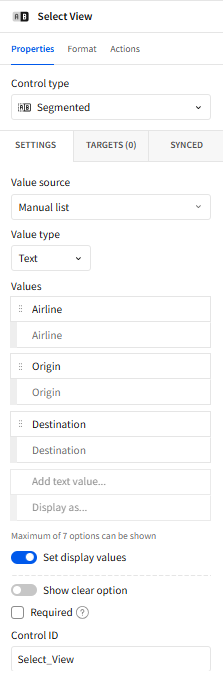
Now in your dataset – add a column that references this Control and returns the desired field based upon the control selection.
Selected Value = Switch([Select_View], "Airline", [Airline (AIRLINES)], "Origin", [Origin Airport], "Destination", [Destination Airport])Drag this new calculated fields – Selected Value – to the rows of your table and add in a count of the flight number to the values. You should be able to select the different values in your Segmented Control and have that field reflected in the table.
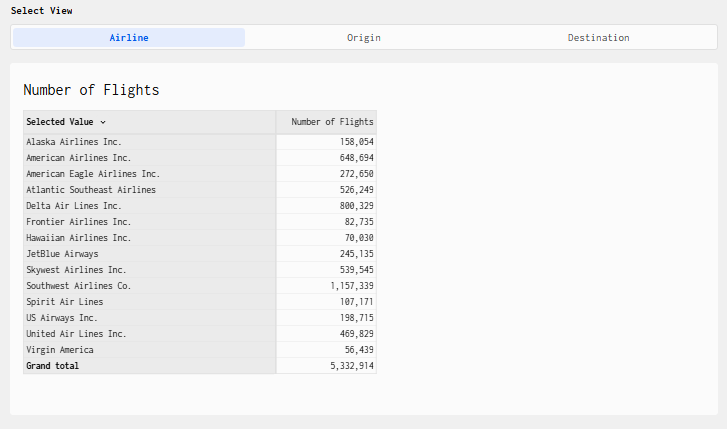
Now, let’s ensure that we can click filter onto other elements in the workbook.
Click Filter Action
Our desired end state in this use case is for users to be able to click on a row in the pivot table, regardless of the field that is being displayed at the time (subject to the segmented control) and be able to click filter.
So now, create a Filter Control > List Values, and add it to the workbook. We will refer to this filter as the Dynamic Filter.
Now, navigate to the table where you will be performing the click filter functionality and edit the Actions. On Select > Selected Value (rows) – set the Control Value for the Dynamic Filter and set the value as a Formula – [Selection/Selected Value].

Using the Selection function here is the key. The Selection function is used to capture what a user has actively selected in a table or visualization and make that choice usable elsewhere in the workbook.
So now when you click on any value in the Selected Values row, the Dynamic Filter is populated with that value.
Set Targets for Control
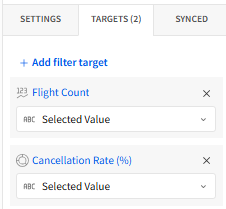
Now that you have the dynamic row being driven by the segmented control and the dynamic filter being driven by the click action of the rows, the last step is to set the targets of the dynamic filter control to the other parts of the workbook you want to control.
The targeted chart elements are then added as a filter target with the Selected Value as the field. Since the row click action is driven off the Selected Value field in the rows, you want to filter down the targeted chart elements with that selected value in the dynamic filter control. See the set up below.
Actions to Clear Filter
We have one last tweak to make before this functionality is user ready. If you were to click on a different field to show in Rows with a value already filtered, your charts that are being filtered will show as NULL. In order to clear the dynamic filter when changing fields shown in Rows, add an Action to the segmented field control. The Clear Control action will be applied on CHANGE and apply to the Dynamic Control filter.
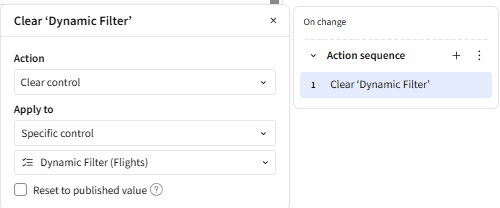
Now when you go and select a different field for the table rows, even if you’ve filtered for a value from the previous row field, you’ll see all the data. Now you should have a fully functioning workbook with dynamic rows and click filtering!

Wrap-Up
At Maverick Data, we love helping our clients be innovative and impactful with their data and Sigma. Use cases like dynamic rows combined with dynamic filtering using the Selection function is a great example of how small, intentional design choices can unlock much richer, more intuitive analytics products. We hope that this example use case was informative and helpful!
Contact Us
If you would like to talk to someone at Maverick Data about maximizing your usage of the Sigma platform, please email us at spencer@maverickdata.io for more information!